
Opening a Tiptop Casino account involves submitting the registration form, confirming your contact details, completing your first login and providing any identity documents requested.
This guide explains which details to prepare, how to access your account through a desktop or mobile browser, how to keep your login credentials secure and how to troubleshoot common sign-in issues.
| Task | Where to Do It | What You Need |
|---|---|---|
| Create an account | Registration form | Personal and contact details |
| Log in | Login form | Your account credentials |
| Log in on mobile | Mobile browser | Your credentials and an internet connection |
| Reset a password | Password-reset option on the login form | Access to your registered contact method |
| Verify identity | Account verification area or support | Requested identity, address or payment documents |
| Secure the account (2FA) | Account security settings | A second authentication method if offered |






Who Can Register and What New Players Should Prepare

You must be legally permitted to gamble where you are located. We restrict access from the USA and certain other jurisdictions, so do not submit an application if you are in a restricted location.
Prepare your own contact information and personal details before starting. Keep access to your email or phone, and have an identity document available in case we request verification.
Submitting a New Account Application
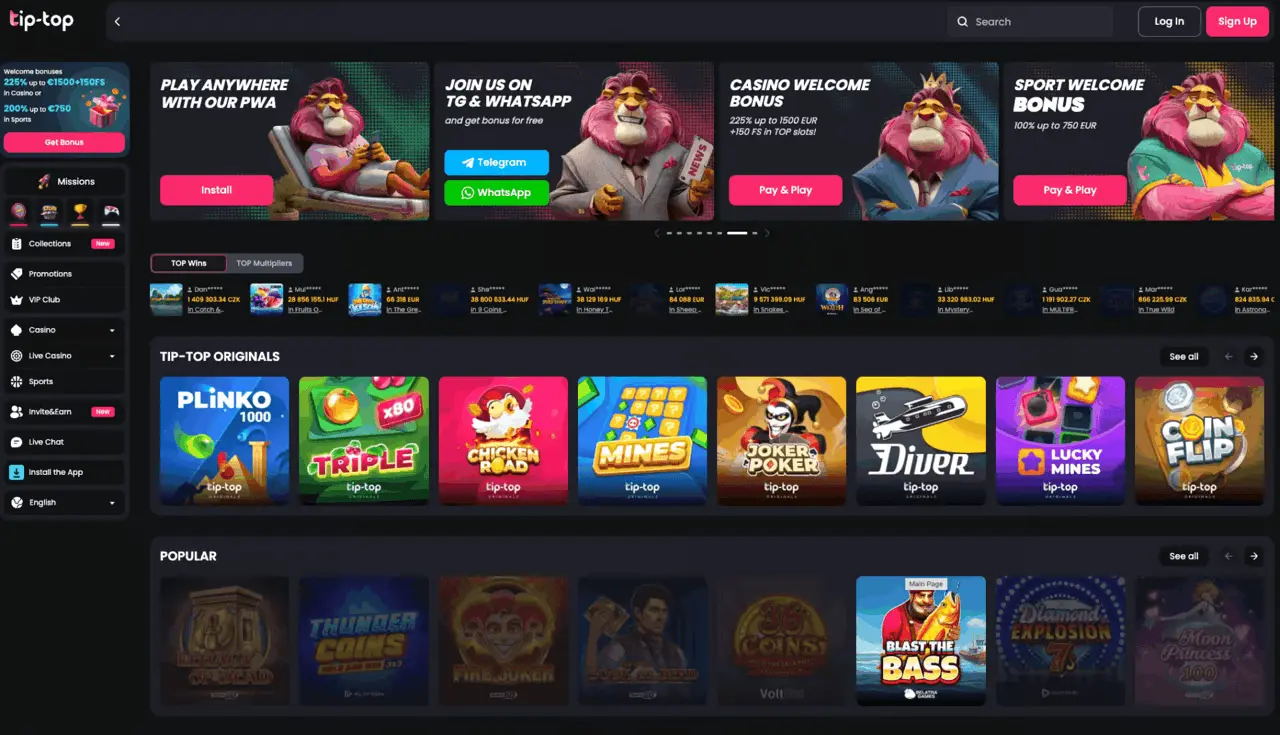
Open our registration form and complete the requested fields yourself. Use accurate information from the outset: discrepancies between your application and later documents can make it harder for us to establish that the account belongs to you.
Follow these steps in sequence, from opening the registration form to reviewing your account after your first login. Complete any confirmation prompt when it appears during the application.
- Step 1 — Open registration — Open our casino in your browser and select the registration option. On mobile, use the browser version; we do not have a dedicated app. Make sure you are permitted to gamble in your location before proceeding.
- Step 2 — Complete the form — Enter the requested personal and contact details using your own information. Choose a unique password, then review the entries for typing errors and consistency with your identity document before continuing.
- Step 3 — Confirm your contact — Follow the email or phone confirmation instructions if we send you a link or code. Check your junk folder if an email is missing, and use the resend option if one is provided.
- Step 4 — Accept the terms — Read the registration terms presented during sign-up and accept them if you agree. Submit the application as directed, correcting any field-specific errors that prevent the form from being completed.
- Step 5 — Sign in — Open the login form and enter the credentials you created. If they are not recognised, check for typing errors before using the password-reset option or asking our support team for help.
- Step 6 — Review your profile — Once signed in, inspect your personal and contact details for mistakes. Locate the verification area and respond to any document request with the evidence we ask you to provide.
- Step 7 — Set account controls — Review your security settings for 2FA and complete setup if it is offered. Locate our deposit and loss limits, session timers and other responsible gambling controls so you can choose the protections you need.
Entering Contact Details and Personal Information
Enter your name and other requested personal information as they appear on your identity document. Supply an email address or phone number you control, because you may need it to receive a confirmation message or recover access.
Review each entry before submitting the form. A mistyped contact detail can prevent a confirmation message from reaching you, while an incorrect name can create a mismatch during identity checks.
Choosing Account Credentials and Completing Sign-Up
Choose a unique password that you do not use for another account. Read the registration terms presented with the form, accept them if you agree, and submit your application using the form’s instructions.
Store your credentials securely rather than sharing them. If the form identifies an incomplete or invalid field, correct that field before trying to submit again; repeated submissions with the same error will not fix it.
Confirming Registration Through Email or Phone

If we send a confirmation link or code, open the message sent to the contact detail you supplied and follow its instructions. Complete this step before attempting to use features that require a confirmed account.
If the message does not arrive, inspect your spam or junk folder and confirm that you entered the correct address or number. Request another message if the confirmation screen offers that option; contact us if you cannot access the registered contact method.
Identity Validation and Account Documentation
We may request an ID or passport, proof of address and proof that you own a payment method. Provide the documents we request for your account rather than sending unrelated personal records.
Make sure each image is legible and shows the information needed to identify the document and its holder. If a document is rejected, read the reason provided and submit a clearer or more appropriate document through the requested route.
Keep your account details consistent with your documents. If your name or address has changed, tell us when you submit the relevant evidence so we can understand the difference rather than treating it as an unexplained mismatch.
First-Time Login and Player Area Overview
Once you have completed the required registration and confirmation steps, open the login form and enter your account credentials. On a mobile device, use your browser; we do not offer a dedicated app.
After signing in, review your profile and contact details for errors. Locate the verification and security areas so you know where to respond to a document request or update your account protection.
Our account tools include deposit and loss limits, session timers, cooling-off and self-exclusion. You can also use our self-assessment tool to consider your gambling habits before deciding which controls to use.
Personal Profile Settings and Account Protection
Keep your contact details current so you can receive account messages and recover access. If you need to change your login email and cannot do so in your profile, contact us and be ready to establish that the account is yours.
Look in your security settings for two-factor authentication, or 2FA. If it is offered, follow the setup instructions and protect the second authentication method; do not assume that a second factor is active until setup is complete.
Protect both your account credentials and the contact method linked to your profile. These habits reduce the chance of unauthorised access and help you recover your account if you are locked out.
- Use a unique password — Create a password used only for this account and store it in a secure password manager, rather than reusing credentials from another service.
- Protect your contact method — Secure the email account or phone linked to your profile, because access to it can be important when confirming registration or recovering your password.
- Set up a second factor — If 2FA is offered in your security settings, complete its setup and keep the authentication device or recovery information somewhere only you can access.
- Sign out on shared devices — End your session after using a shared or public device, and avoid saving your password in a browser that other people can access.
- Keep recovery details current — Update your contact information when it changes, or ask us for help if you cannot update it yourself, so recovery messages can reach you.
Registration Conditions, Duplicate Accounts and Access Restrictions
Use your own identity and contact details when registering. If you think you already have an account, try to recover access or ask us for help instead of submitting another application.
Do not use another person’s documents or payment method to pass an ownership check. If you cannot provide the requested evidence, contact us to explain the issue before submitting a substitute document.
We are registered in Costa Rica. That registration is not equivalent to a formal gaming licence in a stronger licensing jurisdiction; it does not change the need to comply with the access restrictions that apply to your location.
Resolving Registration Errors and Verification Issues
Start with the specific message shown on the form or login screen. Correct the affected field, retry the relevant action and keep any error wording available if you need to ask us for help.
Our support team is available 24/7 through live chat, email, WhatsApp and Telegram. Describe the step that failed and the message you received, but never send your password or a one-time authentication code to support.
Use the fix that matches the message or obstacle you encounter. If it does not resolve the problem, give our support team the relevant error wording without disclosing your password.
- Forgotten password — Open the login form, select the password-reset option and follow the instructions sent to your registered contact method. Create a new, unique password before signing in again.
- Confirmation message missing — Check your spam or junk folder and verify the contact detail you entered. Request another message if the confirmation screen provides that option.
- Registration form rejected — Read the field-specific error, correct the information it identifies and submit again. If the error persists, tell us which field and message appeared.
- Document not accepted — Read the rejection reason and provide a legible replacement that meets the request. Contact us if you cannot supply the requested evidence.
- Login details not recognised — Check the account identifier and password for typing errors, including unintended spaces. If you still cannot sign in, use password recovery or contact us.